Skip to content

Expert home heating guides, reviews & repairs

Heater GuidesHeaterGuides
Remote

Remote Heating Control Safety: 7 Essential Protection Steps

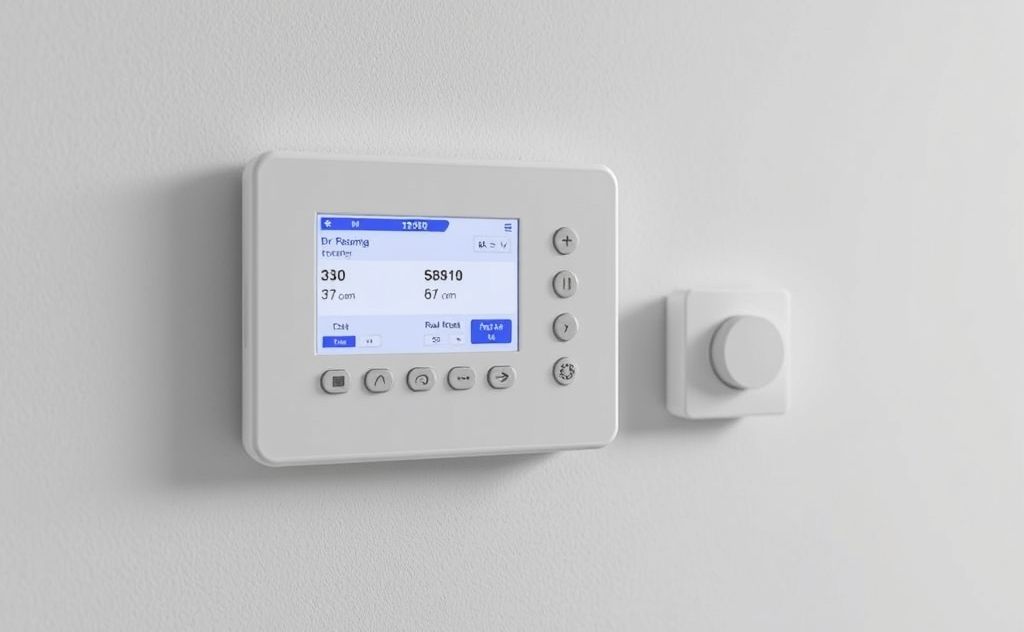
You walked into a cold house last winter because someone — maybe a kid, maybe a visiting friend — tapped the screen and cranked the heat down. Or worse: you got a bill spike from a setting change you never made. Smart thermostats are great for convenience and savings, but they open up new failure points. A device connected to your heating system and the internet needs the same care you give your front door lock.

This article walks you through seven concrete steps to lock down your remote heating control. You’ll learn how to prevent accidental bumps, stop unauthorized remote access, catch problems early, and keep your system running safe. No theory — just actions you can take today.

One of the simplest first moves is a physical barrier. Products like the BAOKZZOM Thermostat Lock Box Cover with Key snap over your thermostat and lock with a key. It stops anyone from touching the screen, yet stays transparent so you can still read the display. That lock box alone can prevent 90% of accidental setting changes. We’ll cover that and more below.

Step 1: Lock the Thermostat Down Physically

Your thermostat sits on the wall, easy to reach. That’s a problem. A bump from a vacuum cleaner, a toddler’s curious finger, or a guest who thinks 80°F is pleasant — all it takes is one touch. A lock box or guard solves this instantly.

Look for a cover built for your model. The BAOKZZOM unit mentioned above fits Ecobee Smart Thermostat Essential, Premium, and Enhanced. It uses military-grade polycarbonate: clear, scratch-resistant, won’t yellow. Ventilation slots prevent heat buildup that would throw off readings. Installation takes seconds with adhesive strips — no drilling, no tools.

Pro tip: Measure your thermostat’s dimensions before buying. Most universal guards fit sizes up to 4.8 by 4.7 inches. If your thermostat is larger, you’ll need a custom option.

Step 2: Control Who Touches the Screen

A lock box is great, but not every thermostat gets one. If you don’t use a cover, at least move the thermostat out of reach. Hallways near the front door are the worst spot — too many people brush past. Better places: a bedroom wall above a dresser, or a living room wall behind a sofa arm.

If mounting height is flexible, install the thermostat at eye level (about 60 inches up). Children can’t reach it, and adults have to intentionally go to it. That cuts down on accidental settings without needing a lock.

For setting up remote control, remember that physical access is still the primary threat. Even with a password on the app, someone can walk up and change the heat directly.

Step 3: Use Strong Digital Access Controls

Your thermostat app needs a password. Not the default ‘1234’ or the last four digits of your phone number. Use a real password: 8+ characters, mix of letters and numbers. Enable two-factor authentication if the manufacturer offers it.

Most smart thermostats also let you set a local PIN code on the device screen. Turn that on. It means anyone who walks up to the thermostat must enter a code to change anything. Without the code, they can only see the temperature.

The same applies to voice assistants. If you have Alexa or Google Home connected to the thermostat, make sure voice purchasing and voice commands are PIN-protected. Otherwise, a shout from the next room can raise the heat.

Step 4: Isolate the Thermostat on a Guest Network

Your home Wi‑Fi connects many devices: phones, laptops, streaming sticks, maybe a smart fridge. Each one is a potential entry point. If a visitor’s phone has malware, that malware can scan your network and find your thermostat.

Solution: set up a separate IoT (Internet of Things) network on your router. Many modern routers let you create a guest network that blocks devices from talking to each other. Put the thermostat on that guest network. It still reaches the internet to communicate with the app, but other devices on your main network can’t touch it.

If you can’t create a separate network, at least enable ‘device isolation’ in the router settings. That prevents the thermostat from being accessed by any other device on the same network except the cloud server.

This digital layer is part of the larger topic of benefits of remote heating done securely. Without proper isolation, those benefits turn into risks.

Step 5: Set Temperature Limits and Alerts

Your thermostat’s software likely includes a ‘min/max’ temperature range setting. Use it. Set a minimum of, say, 50°F to prevent pipes freezing in a vacation home. Set a maximum of 80°F to stop someone from cranking the heat to wasteful levels.

Then enable notifications: an alert when the temperature goes outside the range, or when a manual override happens. If you’re away and the heat suddenly drops to 40°F, you need to know immediately — a frozen pipe can burst and flood your basement.

Most apps let you push alerts to your phone. For extra safety, some thermostats can send email to a secondary address. That’s a cheap insurance policy.

Step 6: Schedule a Weekly Check Routine

You don’t need to check the thermostat every day. But once a week, pull up the app and look at the temperature history. See anything unusual? A graph that shows a spike at 3 AM when no one is home might mean a glitch or tampering. A gradual drift could mean the lock box ventilation is blocked.

Also verify that the scheduled programs haven’t changed. Some thermostats sync with phone calendars or geofencing. If you recently updated your phone OS, the geofence may have reset. Check that it still works.

If you have multiple zones or multiple thermostats, do this check for each one. A few minutes a week can catch problems before they cost you money or comfort.

For integrating remote control with an older system, this weekly check is even more critical because compatibility may not be perfect.

Step 7: Plan for Emergencies

What if the thermostat locks up, the Wi‑Fi goes down, or the lock box key gets lost? Have a fallback.

  • Keep a spare key for the lock box in a known spot (key hook near the panel, or with a neighbor).
  • Know the physical location of the HVAC system breaker or disconnect switch. If the thermostat fails in heat mode, you can kill power to the system.
  • If you lose the lock box key, most models can be drilled open carefully — do that as a last resort, or order a replacement key from the manufacturer.

A backup plan isn’t just about safety; it’s about peace of mind. You don’t want to be locked out of your own heating controls.

Protection Method Cost Difficulty Best For
Physical lock box $15–$30 Easy (stick-on) Homes with kids, rentals, offices
Digital PIN on device Free Easy (device settings) Everyone
Two‑factor authentication (app) Free Easy (app settings) Users concerned about hacking
Guest network / IoT isolation $0–$100 (router) Moderate (router config) Tech‑savy users, large households
Temperature limit + alerts Free Easy (device settings) Vacation homes, renters

Can someone hack my thermostat remotely?

Yes, it’s possible if the thermostat or its app has vulnerabilities. Most modern thermostats use encrypted connections, but weak passwords or outdated firmware can open doors. Keep firmware updated, use a strong password, and enable two‑factor authentication. Isolating the thermostat on a guest network adds another layer. The risk is low, but real.

Do lock boxes interfere with airflow?

Some do, but good designs have ventilation slots. The BAOKZZOM box, for example, includes channels that allow air to circulate. Without vents, the thermostat could read a warm microclimate inside the box and run the AC too long. Always pick a lock box with clear ventilation holes or channels. If you notice the thermostat reading 2–3°F warmer than the room, the box may be trapping heat.

What if I lose the key to the lock box?

Most lock boxes come with two keys. Store one in a safe place outside the box (like a key hook near the electrical panel). If you lose both, you can either drill the lock open or order a replacement key from the manufacturer — BAOKZZOM offers key replacements. In an emergency, a locksmith can open it, but that costs more than a new box. As a last resort, prying the box off with a screwdriver may damage the thermostat, so be careful.

Can I still use voice assistants with a locked thermostat?

Yes, voice control works through the cloud, not the physical screen. A locked thermostat still communicates with Alexa, Google Assistant, or Apple Home. The lock only prevents physical touches. Just make sure you’ve set a voice code for temperature changes to avoid someone yelling ‘set heat to 90’ from the next room.

Do smart thermostat manufacturers offer built-in safety features?

Most do. Ecobee, Nest, and Honeywell include PIN protection, temperature limits, and usage history. However, none offer a physical shield — that’s why aftermarket lock boxes exist. The built-in digital protections are good, but a determined person can still override them if they have physical access. Combining digital and physical protection is the most robust approach.

Quick Action Steps

  • Install a lock box like the BAOKZZOM cover to block accidental touches and tampering.
  • Set a strong PIN on both the thermostat screen and the mobile app.
  • Put your thermostat on a separate guest Wi‑Fi network to isolate it from other devices.
  • Enable temperature min/max limits and turn on notifications for any changes.
  • Check your thermostat’s history once a week for odd patterns.
  • Keep a spare lock box key and know how to manually shut off your HVAC system.
  • Update your thermostat’s firmware regularly — most apps prompt for this automatically.
Share
Written by Joye

I am a mechanical engineer and love doing research on different home and outdoor heating options. When I am not working, I love spending time with my family and friends. I also enjoy blogging about my findings and helping others to find the best heating options for their needs.

Keep reading

Related guides

Free newsletter

Heater deals and guides, worth opening

Price drops, new guides and safety recalls. One email, only when it matters.

No spam. Unsubscribe in one click. Privacy policy.